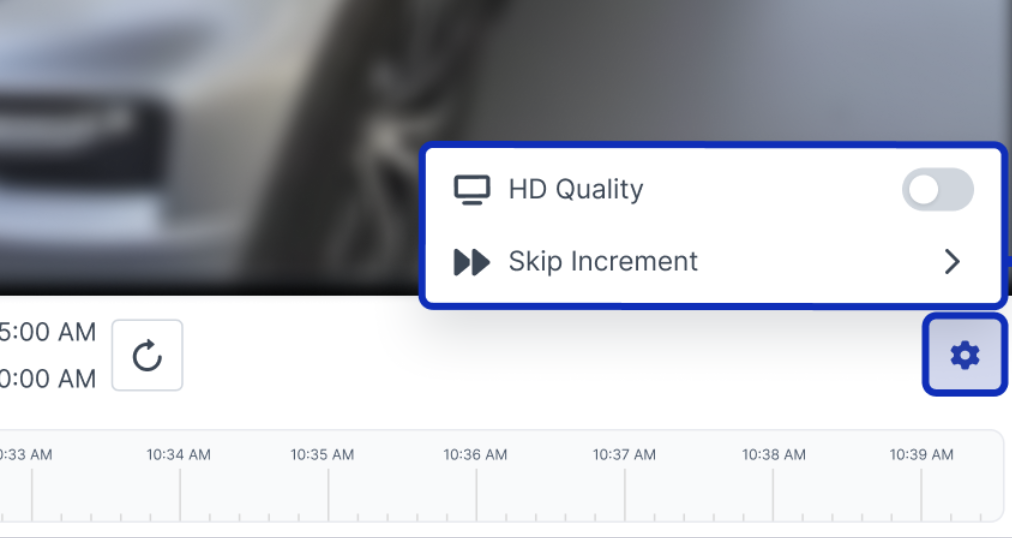
You can now switch any camera to HD. Open a single camera and turn on HD Quality to see sharper video detail to help pinpoint key events or activities. Standard quality remains the default, so you only pull HD when you need it. HD is available to everyone on your team.
The stream reloads in HD. Toggle it back off any time to return to standard quality.
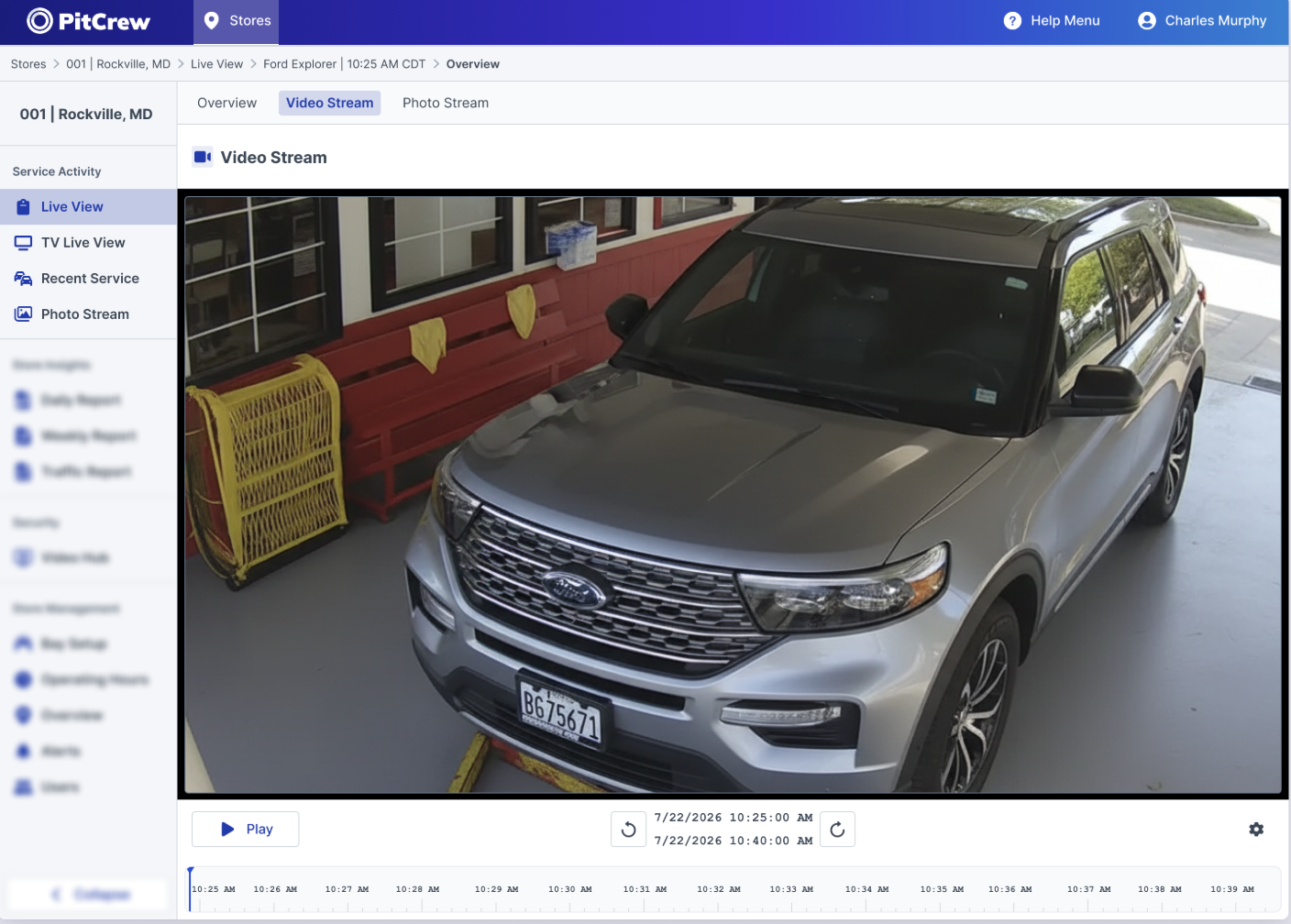
Every service now opens to an Overview dashboard with tabs across the top — Overview, Video Stream, and Photo Stream. The Video Stream tab plays back the bay video for that service, trimmed to when the service started and ended.
That means no scrubbing through hours of footage to find one vehicle. Settle a damage claim, look into why a service ran long, or review how a job was handled — the video is already scoped to the service you're looking at.
Service Video Playback is enabled location by location. If you don't see the Video Stream tab at your store yet, reach out to your PitCrew contact.
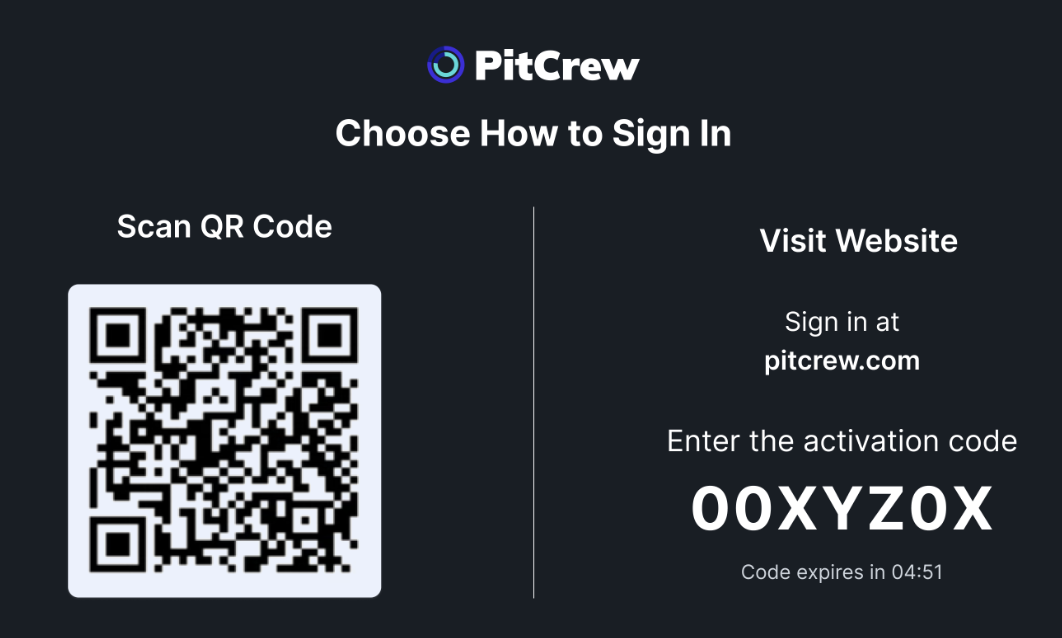
The TV Live View is now a full-screen experience built for the shop floor and driven entirely by your TV remote. Signed-out TVs display a QR code you scan with your phone to sign in, so nobody has to type a password with a remote. The bay grid adapts to how many bays your store has, and you can hide bays you don't want on the display. The screen is built to run unattended, recovering on its own after a network drop and reloading overnight.
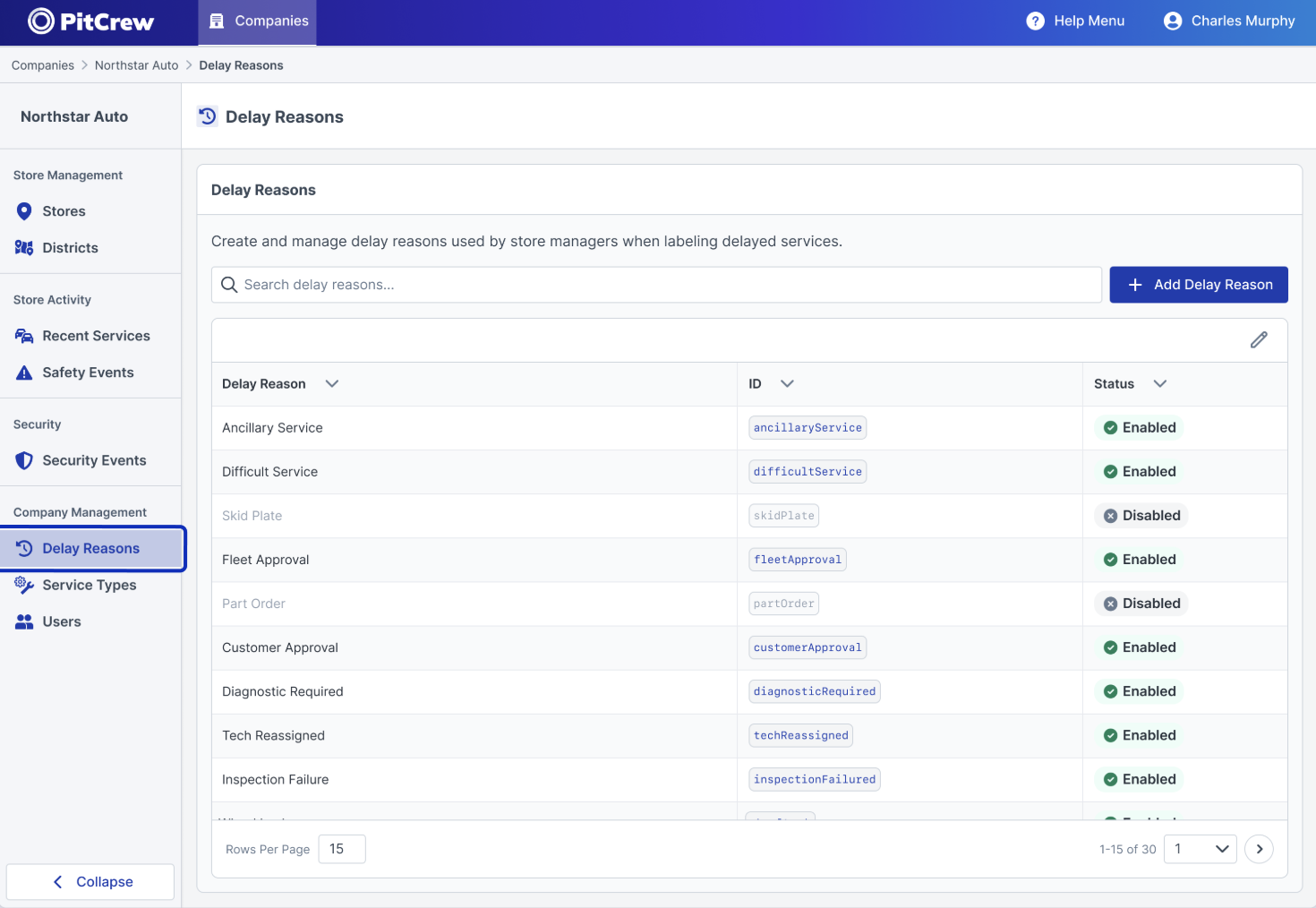
Company admins can now create and edit Delay Reasons and Service Types directly in PitCrew, with changes applying to all stores within a company. The new management tables let you add new entries with validation, update existing ones, and enable or disable values — no support request needed.